上一篇教了用 Embed 讓 Bot 回應更有視覺結構。這篇要把前面學到的指令、按鈕、Embed 整合起來,加上一個有實際用途的功能:每日簽到,讓使用者每天領遊戲幣,並把記錄寫進 Google Sheets。
為什麼選 Google Sheets 當資料庫
管理員打開試算表就能直接操作——不需要另外開發後台。
Bot 一定有「需要人工介入」的時候:查名單、調整餘額、看歷史記錄。資料如果在 PostgreSQL,要嘛另開管理介面,要嘛讓管理員打 SQL。Google Sheets 就是大家都用過的 Excel,打開就能看、就能改。
其他優勢:零維護(不用管備份和 migration)、免費額度足夠(每分鐘 60 次 API)、Bot 重啟資料不受影響。
缺點是複雜查詢和大資料量效能差,但 Discord Bot 幾乎不會走到那一步。
申請 Google Sheets API 金鑰
Google Sheets API 使用 Service Account(服務帳戶)認證——讓程式無需使用者授權就能存取試算表的「機器人帳號」。
步驟一:建立 Google Cloud 專案
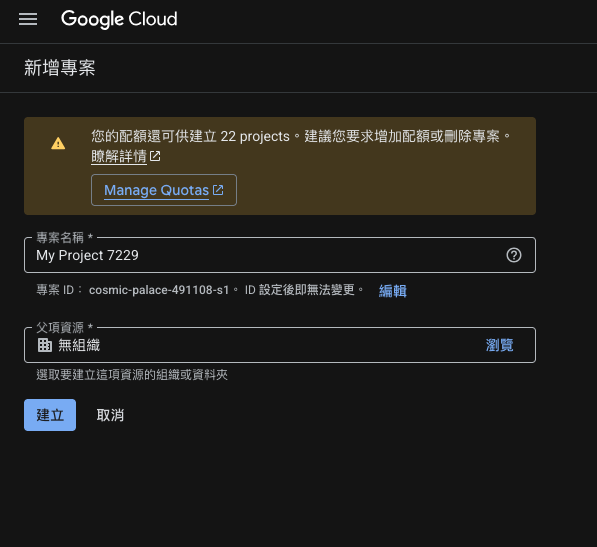
前往 Google Cloud Console,點左上角專案下拉 → 新增專案,輸入名稱(例如 discord-bot),按 建立。
步驟二:啟用 Google Sheets API
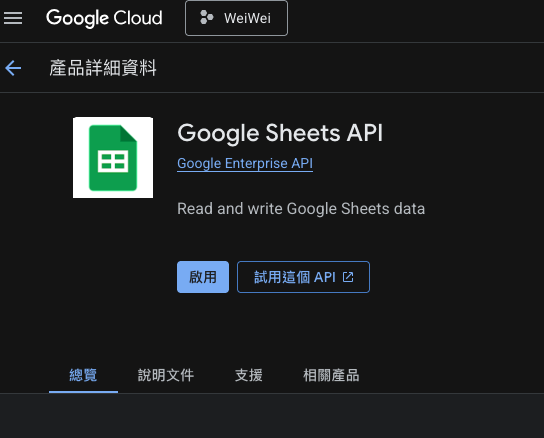
左側 API 和服務 → 程式庫,搜尋 Google Sheets API → 點入 → 按 啟用。
步驟三:建立 Service Account
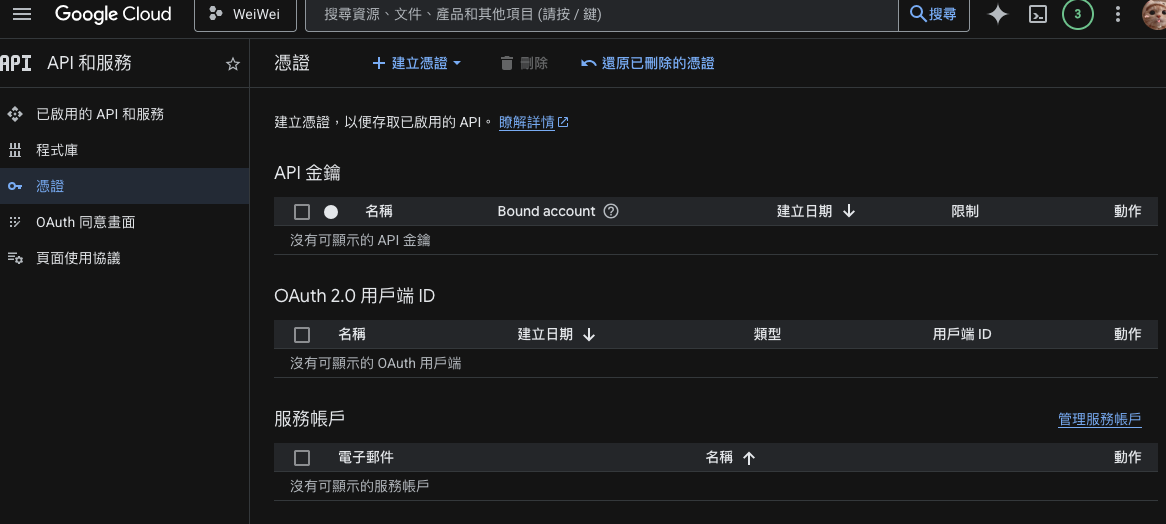
左側 API 和服務 → 憑證 → 建立憑證 → 服務帳戶,輸入名稱(例如 discord-bot-sheets),角色選 編輯者,按 完成。
步驟四:下載 JSON 金鑰
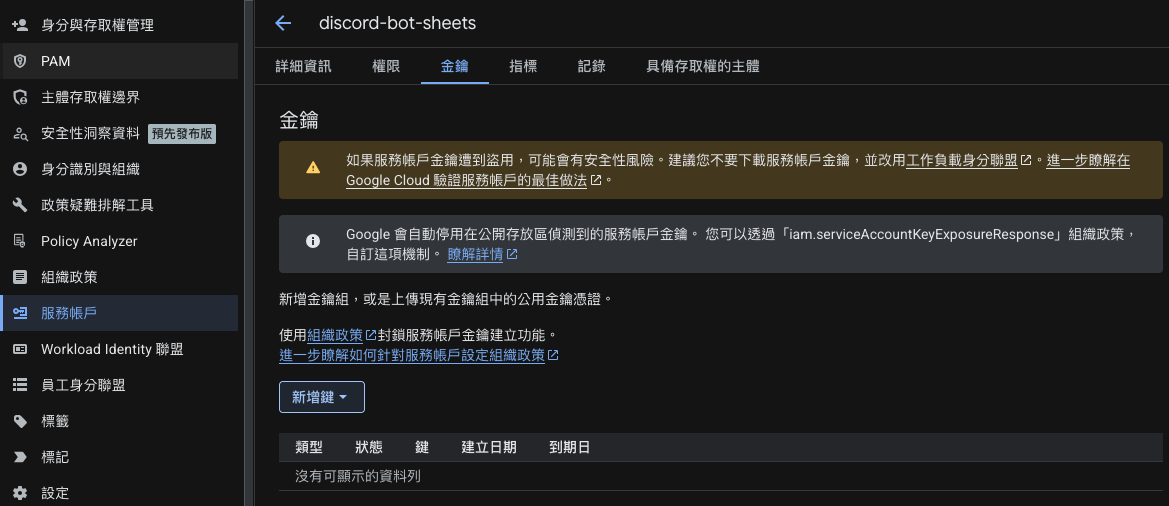
在憑證頁面點剛建立的 Service Account,切換到 金鑰 頁籤 → 新增金鑰 → 建立新的金鑰 → 格式選 JSON,下載後放進專案的 key/ 目錄。
務必把 key/ 加進 .gitignore,這個檔案絕對不能進版本控制:
key/
.env
node_modules/
步驟五:把 Service Account 加入試算表
開啟你的 Google Sheets 試算表,點右上角「共用」,把 JSON 檔裡的 client_email 欄位值貼進去(格式像 bot-name@project.iam.gserviceaccount.com),設定「編輯者」權限,按確認。
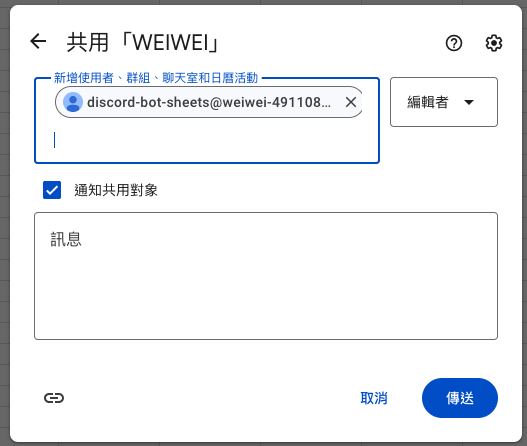
這步驟很容易漏掉。 Service Account 沒被邀請進試算表就沒有存取權限,程式會直接吐 403 錯誤。
建立 Sheets 連線模組
安裝 Google API 套件:
npm install googleapis建立 googleSheets.js:
import { google } from "googleapis";
import fs from "fs";

// 「./key/」裡的檔名要改成你實際下載的 JSON 檔名
const keys = JSON.parse(
  fs.readFileSync("./key/bot-service-account.json", "utf-8")
);

const auth = new google.auth.GoogleAuth({
  credentials: {
    client_email: keys.client_email,
    private_key: keys.private_key,
  },
  scopes: ["https://www.googleapis.com/auth/spreadsheets"],
});

// 建立 Sheets API 客戶端(整個應用程式共用這一個)
export const sheets = google.sheets({ version: "v4", auth });把試算表 ID 加進 .env(從試算表網址取得,/spreadsheets/d/【這段】/edit):
BOT_TOKEN=...
GUILD_ID=...
SPREADSHEET_ID=你的試算表ID第一個功能:每日簽到
在試算表建一個工作表叫 簽到記錄,欄位為:
| A | B |
|---|---|
| 使用者 ID | 最後簽到日期 |
googleSheets.js 負責所有 Sheets 讀寫,加入兩個函式:
import { google } from "googleapis";
import fs from "fs";

// 「./key/」裡的檔名要改成你實際下載的 JSON 檔名
const keys = JSON.parse(
  fs.readFileSync("./key/bot-service-account.json", "utf-8")
);

const auth = new google.auth.GoogleAuth({
  credentials: {
    client_email: keys.client_email,
    private_key: keys.private_key,
  },
  scopes: ["https://www.googleapis.com/auth/spreadsheets"],
});

export const sheets = google.sheets({ version: "v4", auth });

// 查詢使用者上次簽到日期(回傳日期字串,或 null 表示從未簽到)
export async function getLastCheckIn(userId) {
  const response = await sheets.spreadsheets.values.get({
    spreadsheetId: process.env.SPREADSHEET_ID,
    range: "簽到記錄!A:B",
  });
  const rows = response.data.values ?? [];
  const found = rows.find((row) => row[0] === userId);
  return found ? found[1] : null;
}

// 更新或新增簽到記錄
export async function setCheckIn(userId, dateStr) {
  const response = await sheets.spreadsheets.values.get({
    spreadsheetId: process.env.SPREADSHEET_ID,
    range: "簽到記錄!A:B",
  });
  const rows = response.data.values ?? [];
  const rowIndex = rows.findIndex((row) => row[0] === userId);

  if (rowIndex !== -1) {
    await sheets.spreadsheets.values.update({
      spreadsheetId: process.env.SPREADSHEET_ID,
      range: `簽到記錄!A${rowIndex + 1}:B${rowIndex + 1}`,
      valueInputOption: "USER_ENTERED",
      resource: { values: [[userId, dateStr]] },
    });
  } else {
    await sheets.spreadsheets.values.append({
      spreadsheetId: process.env.SPREADSHEET_ID,
      range: "簽到記錄!A:B",
      valueInputOption: "USER_ENTERED",
      resource: { values: [[userId, dateStr]] },
    });
  }
}index.js 加入 /daily 指令:
import dotenv from "dotenv";
import { Client, GatewayIntentBits } from "discord.js";
import { getLastCheckIn, setCheckIn } from "./googleSheets.js";

dotenv.config();

const client = new Client({
  intents: [
    GatewayIntentBits.Guilds,
    GatewayIntentBits.GuildMembers,
  ],
});

client.once("ready", async () => {
  console.log(`✅ Bot 已上線:${client.user.tag}`);

  const guild = await client.guilds.fetch(process.env.GUILD_ID);
  await guild.commands.set([
    { name: "ping", description: "測試 Bot 是否正常運作" },
    { name: "daily", description: "每日簽到" },
  ]);
  console.log("📝 指令已更新!");
});

client.on("interactionCreate", async (interaction) => {
  if (!interaction.isChatInputCommand()) return;

  if (interaction.commandName === "ping") {
    await interaction.reply("🏓 Pong!Bot 正常運作!");
  }

  if (interaction.commandName === "daily") {
    const userId = interaction.user.id;
    const today = new Date().toLocaleDateString("zh-TW", {
      timeZone: "Asia/Taipei",
    });

    const lastDate = await getLastCheckIn(userId);
    if (lastDate === today) {
      return interaction.reply({ content: "今天已經簽到過了!", flags: 64 });
    }

    await setCheckIn(userId, today);
    await interaction.reply(`✅ 簽到成功!今日日期:${today}`);
  }
});

client.login(process.env.BOT_TOKEN);執行後到 Discord 輸入 /daily,打開 Google Sheets 就會看到記錄被寫入。重啟 Bot,資料依然還在。
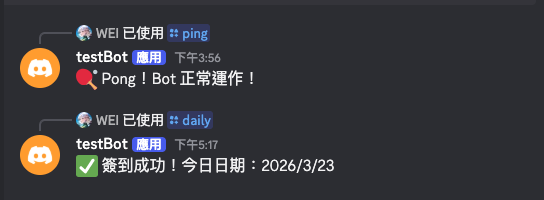
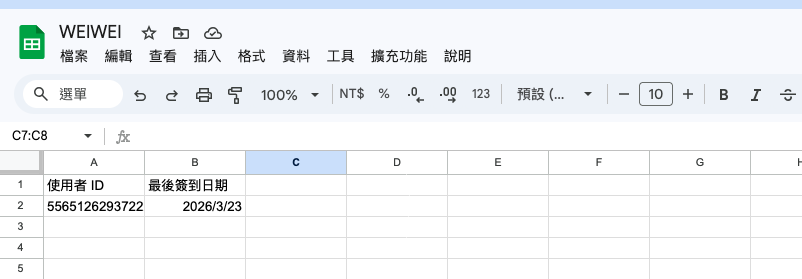
Bot 現在能記住事情了。有了 googleSheets.js 這一層,後面不管是遊戲幣系統、排行榜、名單管理,都通過同一個模組讀寫資料。
下一篇處理一個更實際的問題:Bot 要跑在 24 小時不關機的伺服器上,崩潰怎麼辦——以及如何用 Docker 打包成容器部署到正式環境。